
Give teachers and students room to share ideas with Epson interactive classroom projectors, selected, installed and supported by Macrosphere.
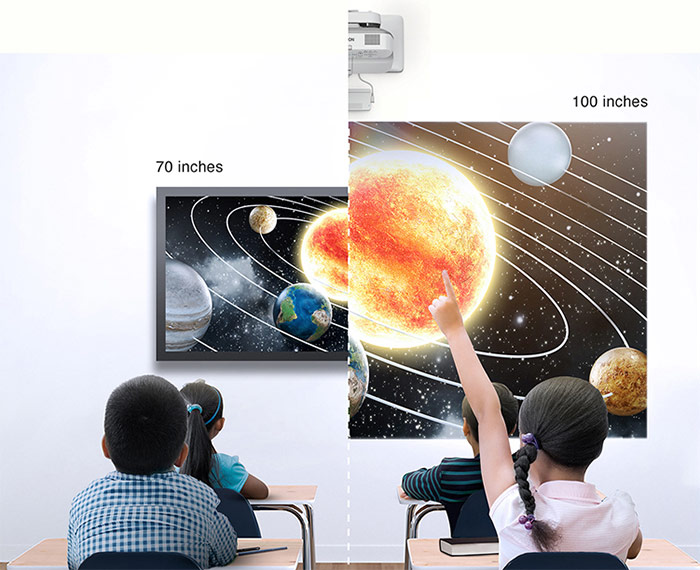
A shared workspace for the way you teach
Present a lesson, write through a problem or invite two students to work together at the board. An interactive projector turns a suitable projection surface into a large workspace for teaching, annotation and collaboration.
Ultra-short-throw projectors sit close to the board, helping reduce shadows and keeping equipment out of the teaching space.
At Macrosphere, we help Queensland schools choose education AV that suits their teachers, rooms, existing technology and budget. We bring the projector, installation and support requirements together so you know what to expect.
Starts with teachers
There’s no single projector setup that suits every classroom. Start with what your teachers need to do, whether that’s presenting resources, annotating a diagram or working through ideas with students.
We’ll ask about the devices and teaching software you already use, then look at the board, room lighting and where students sit.
The aim is straightforward: a clear image, reliable connections and interactive tools your team can feel comfortable using every day.
Put your lesson ideas to work
Epson interactive projectors combine a large projected image with pen interaction and, on compatible setups, optional finger touch. Depending on the model and software, teachers and students can:
You don’t need to use every feature on day one. Start with the tools that help your teaching and build from there.
Choose the right fit for your classroom

An image students can see and reach
A larger image only helps if students can read it. We consider viewing distance, text size, resolution, classroom lighting and the projector’s colour and white brightness.
We also check the model’s supported interactive image size and mounting height, so the board works for teachers and students.

Connections that suit your teaching tools
Your lesson resources and devices should be part of the conversation from the start. We check HDMI connections, any USB connection needed for computer interaction, and compatible wireless sharing.
Windows laptops, Macs, Chromebooks and iPads can have different connection and software requirements. Your school’s network policies matter too.
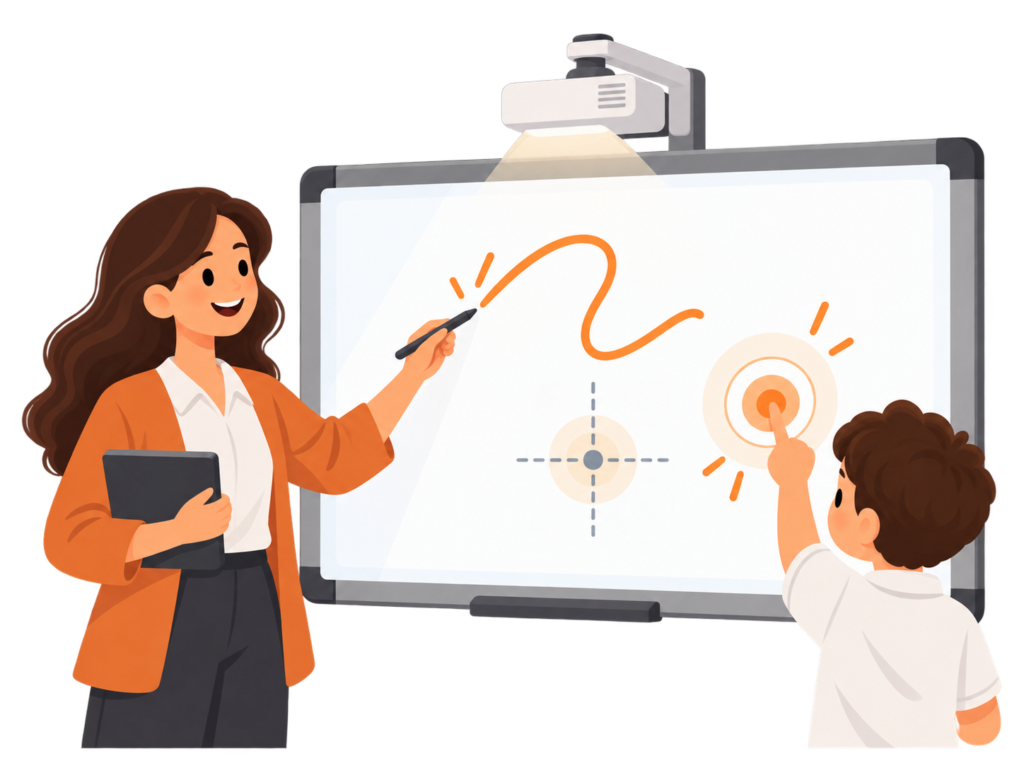
The right surface for pen and touch
Interactive projection needs a suitable flat, stable surface. An existing whiteboard may work, but its size, condition and finish need checking.
Pen interaction and finger touch are different features. Some Epson models need an optional touch unit for finger control, with installation and calibration to suit the board.
Epson interactive projectors for education
Epson’s interactive laser ultra-short-throw projector range.
Supporting dual interactive pens, PC-free annotation and compatible wireless sharing. Finger touch requires the optional ELPFT01 touch unit, and the wall mount is also an optional accessory.
We’ll confirm the model, available accessories and supply options for your project. If you already use an EB-725Wi or EB-735Fi, Epson now lists these in its back catalogue. Tell us what’s installed so we can discuss a suitable upgrade.
Why laser?
Unlike older lamp projectors, these Epson models use a long-life laser light source. That means quick start-up, consistent brightness and no lamps for your IT or facilities team to routinely replace.
With a light source rated for up to 20,000 hours, they’re designed for years of everyday classroom use (estimated 16 years at 6 hours of projection per approx. 200 day school year).


EB760Wi
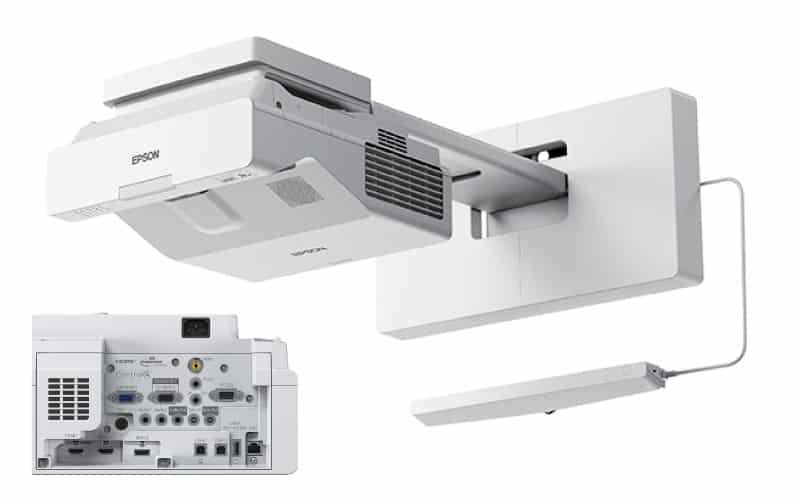
A practical, cost-effective choice for classrooms that want the benefits of a large interactive display without needing Full HD. The EB-760Wi combines bright laser projection with flexible image sizing for everyday teaching and collaboration.
- WXGA resolution
- 4,100 lumens colour and white brightness
- Up to 150″ interactive image
- Interactive pen and optional finger touch
EB-770Fi
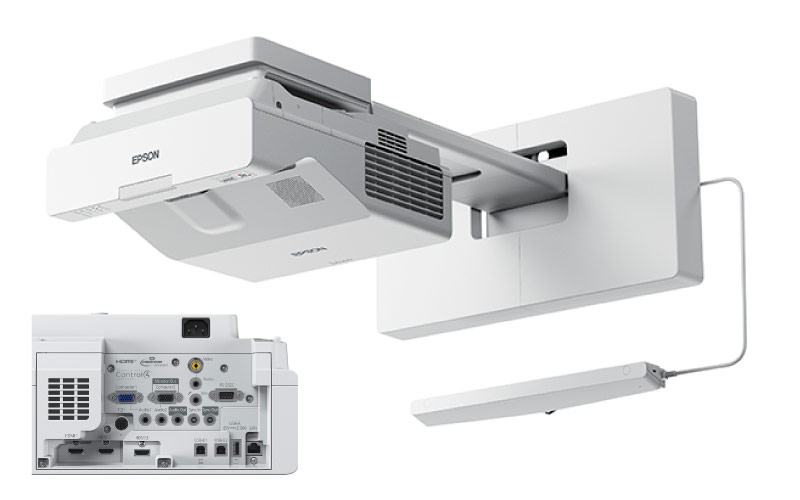
A step up for schools wanting sharper Full HD detail while keeping the flexibility of a large interactive projected image. The EB-770Fi is a strong all-round option for classrooms where text, video and detailed lesson content are regularly displayed.
- Full HD 1080p resolution
- 4,100 lumens colour and white brightness
- Up to 150″ interactive image
- Interactive pen and optional finger touch
EB-870Ei
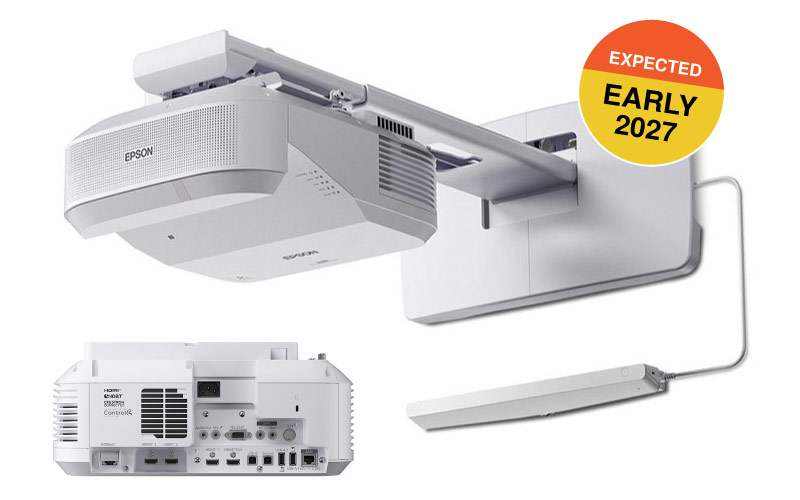
*Expected early 2027* Next generation option for schools wanting a brighter, larger interactive teaching space. The EB-870Ei adds more brightness, 4K Enhancement and support for images up to 180″, making it suited to larger classrooms and learning spaces.
- Full HD with 4K Enhancement
- 5,000 lumens colour and white brightness
- Up to 180″ image
- Interactive pen and optional finger touch
Feel confident after installation
Getting the image on the board is a milestone. Helping teachers feel comfortable using it is just as important.
We can discuss practical guidance for connecting a laptop, using the interactive pens, opening the whiteboard tools and saving work through compatible software. Start with the tasks your teachers use most and build from there.
We’ll also explain the warranty and support arrangements in your proposal, including who to contact if the image, connection or pen alignment needs attention.
Plan the installation around the room
A good installation makes the projector easier to use and the classroom easier to work in.
- Check the board, wall structure and compatible ultra-short-throw mount.
- Set the image size and height for visibility and student reach.
- Allow for power, data, HDMI, USB and tidy cable management.
- Include optional touch hardware and classroom audio where needed.
- Align the image, calibrate interaction and check teacher devices.
Replacing an older Epson projector? We’ll assess whether the existing board, bracket and cabling can be reused. A new model is not automatically a like-for-like swap.
Understand the whole installed cost
The projector price is only part of the budget. A mount, suitable board, optional finger-touch unit, cabling, electrical work and installation can all affect the total.
We’ll help you understand what’s included, what’s optional and whether software or support carries an ongoing cost. Removal of old equipment and teacher handover should be considered too.
Whether you’re updating one classroom or planning a staged school rollout, we can work through the priorities with you.
Your interactive projector questions, answered
An interactive classroom projector displays lesson content on a suitable board or surface and lets teachers and students write, draw or control compatible content using interactive pens. Some setups also support finger touch. Unlike a standard projector, it adds interaction at the projected image, with tools depending on the model and software.
Selected Epson models support two interactive pens for working together at the board. Finger touch is a separate feature and may need an optional touch unit. The EB-760Wi and EB-770Fi require the optional ELPFT01 for finger touch. We’ll confirm the hardware and surface requirements before quoting.
Possibly. The board needs to be a suitable size, flat, stable and compatible with the proposed projector and interaction method. Its finish and condition can affect image quality and touch performance. We’ll assess the board, wall, mounting position and cabling before recommending reuse or replacement.
The right combination depends on classroom lighting, viewing distance, the detail in your lesson content and student reach. A larger image is not always easier to read. We check resolution, colour and white brightness, and the model’s supported interactive image size alongside the available board and mounting position.
Compatible devices can display lesson content through supported wired or wireless connections. Computer interaction may also need USB, drivers or Epson software. Sharing an iPad screen is not the same as controlling it from the board. We’ll check your devices, operating systems and teaching tools with your IT team.
Compatible Epson projectors support wireless presentation through options such as Epson iProjection, with Miracast available on selected models. Device support and setup depend on the projector and school network. Wireless display does not automatically provide wireless pen or touch control, so we’ll check the workflow your teachers need.
Selected models, including the EB-760Wi and EB-770Fi, offer PC-free annotation and whiteboard functions. These let teachers use the projector’s built-in interactive tools without running a lesson from a laptop. Saving, exporting and using particular teaching applications depend on the model, software and connected equipment.
The total depends on the projector, board, mount, optional touch unit and work needed in the classroom. Power, cabling, audio, removal of old equipment and teacher handover may also affect the price. Ask for an itemised installed quote that identifies GST, optional extras and any ongoing charges.
Laser models avoid routine lamp replacements, but they are not maintenance-free. Filters, ventilation and cleaning still need attention according to Epson’s instructions and the classroom environment. Pen batteries and calibration may also need checking. We’ll discuss access for maintenance and the care requirements for the selected model.
We can discuss practical teacher guidance and support to suit your team, from connecting devices to using pens and checking calibration. Warranty terms vary by model and supplied accessories. Your proposal should explain the applicable coverage, included support and how to get help when something is not working.
Let’s find what works for your classroom
Replacing an older projector? Planning several classrooms? Still working out whether your existing whiteboards will suit?
Tell Jo what your teachers are using and what you’d like to make easier. We’ll help you work through the projector options, installation requirements and next steps.
For help with the wider room, explore our classroom audio visual solutions.

INTERACTIVE PROJECTOR ENQUIRY